Platecraft guide
How to set up and use Platecraft
Everything the app can do, in plain English, with the setup steps for each part.
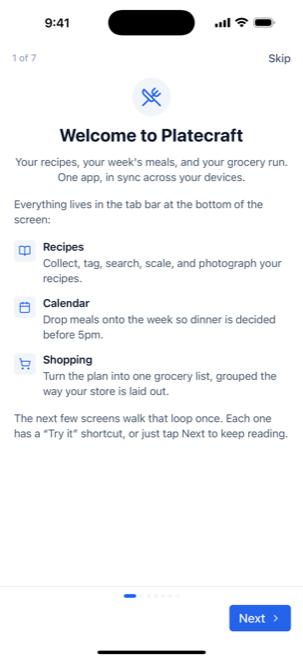
Platecraft keeps your recipes, your weekly meal plan, and your shopping list in one app on your iPhone or iPad. There is no account to create and no password to remember. Your recipes live on your phone, and if you want, they copy themselves to your other devices through your own iCloud.
This guide walks through the whole thing, start to finish. Skip to whatever you need.
1. Your first five minutes
Open Platecraft for the first time and it greets you with a short welcome tour. Read it or skip it. Nothing is being set up behind the scenes, and you can replay the tour any time from Settings → Getting started.
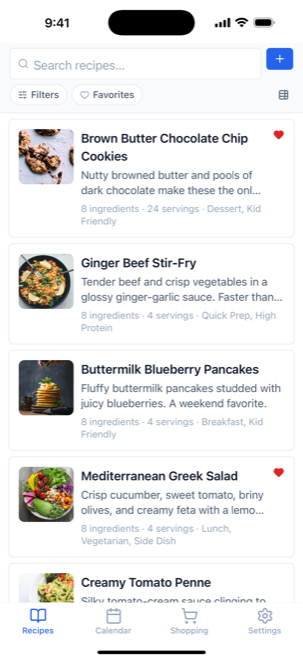
Along the bottom of the screen are the only four places you'll ever need:
- Recipes: your cookbook.
- Calendar: what you're eating, and when.
- Shopping: the list you take to the store.
- Settings: everything else, including sync and backups.
2. Getting your recipes into the app
Tap + on the Recipes tab. You'll see a row of tabs across the top. These are the different ways a recipe can get in.
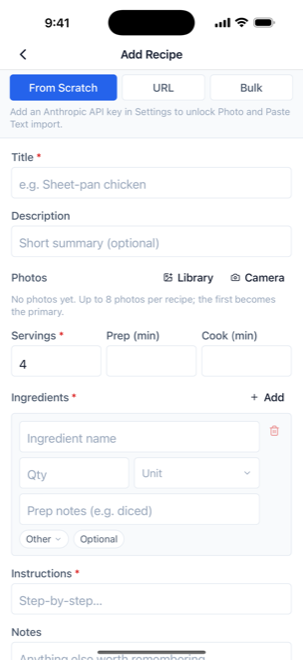
From Scratch: type it in yourself
Best for grandma's handwritten card, or anything you already know by heart. Give it a name, add ingredients one line at a time, write the steps, and save. Add a photo if you like.
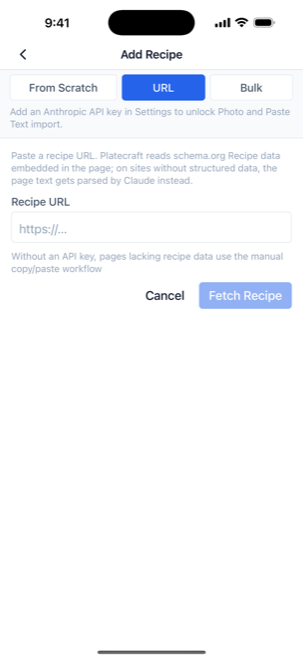
URL: grab it from a website
The one you'll use most. Copy the web address of a recipe (in Safari, tap the share button and choose Copy), paste it into the URL tab, and tap Fetch Recipe. Platecraft reads the page, pulls out the ingredients and steps, grabs the photo, and skips the food blogger's life story entirely. Most recipe sites work. Sites that don't publish their recipe in a machine-readable format need the AI features from section 5 to come through cleanly.
Photo and Paste Text: the AI ones
These two tabs appear once you've set up an AI key, because they can't work without one. Photo turns a snapshot of a cookbook page or a handwritten recipe card into a proper recipe. Paste Text does the same for text you copied from a note, an email, or a blog post. Section 5 covers the setup.
Tags: the thing that makes planning work later
As you add recipes, put a tag or two on them: quick, chicken, kid-approved, slow cooker. It feels like busywork now. It's what lets the meal planner build a sensible week for you in section 3. You can manage the full list from Settings → Manage → Tags.
3. Planning your week
The Calendar tab is a normal-looking calendar where each day holds meals instead of appointments.
Doing it by hand
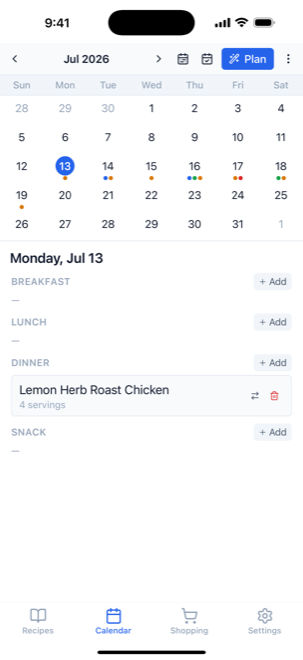
Tap a day, tap the meal you want to fill (breakfast, lunch, dinner, or whatever slots you set up under Settings → Manage → Meal slots), pick a recipe, and it's on the calendar. Adjust the number of servings right there if you're feeding company. Not cooking? You can type in a plain note like "leftovers" or "pizza night" instead of picking a recipe.
Letting Platecraft do it
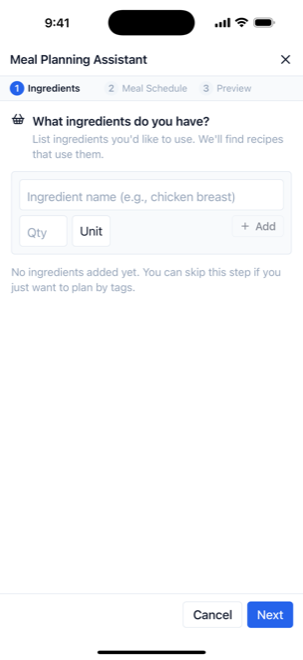
Tap Plan in the top corner and the Meal Planning Assistant walks you through three steps. First it asks which ingredients you'd like to use up, like the half-bag of spinach in the fridge or the chicken you already bought. You can skip that. Then you choose which days and which meals to fill. Then it drafts the week from your own recipes, spreading out repeats and favoring your favorites.
Nothing is saved until you approve it. The preview lets you swap any meal you don't like, lock the ones you do, and re-roll the rest.
4. The shopping list
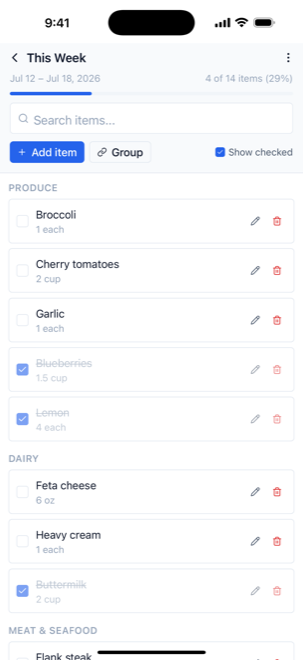
Once your week is planned, the Shopping tab turns it into a list. Pick the stretch of days you're shopping for, and Platecraft adds up every ingredient from every planned meal, combining the three recipes that each want half an onion into one onion-and-a-half.
The list is grouped by area of the store (produce, dairy, meat) so you walk the aisles once instead of three times. Tap an item to check it off. The app remembers where you were if you close it mid-aisle.
Two settings worth five minutes of your time
- Staples (Settings → Staple ingredients): the things you always have. Add salt, pepper, olive oil, and butter here and they'll stop cluttering every list.
- Store sections (Settings → Manage → Store sections): rename or reorder these to match the store you actually shop at, and the list will read in walking order.
Lists get noticeably tidier with the AI features turned on, because Platecraft can then recognize that two recipes calling for "scallions" and "green onions" mean the same ingredient. That's covered next.
5. Turning on the AI features
This is the most technical setup in Platecraft, and it's the one that changes the app the most. It takes about five minutes, once, and it costs a few dollars a year for most households. Here's what it does and how to set it up.
What it unlocks
- Photo import. Snap a cookbook page, a recipe card, or a handwritten note and it becomes a structured recipe, with the ingredients and steps in the right places.
- Paste Text import. Text from a note, an email, a text message, or a blog post gets read and turned into a recipe.
- Stubborn websites. URL import normally reads the recipe data that good recipe sites publish. On sites that don't publish it, import falls back to AI and reads the page the way you would. Without the key, those pages fail or need copying by hand.
- Tidier shopping lists. Platecraft recognizes that scallions and green onions are the same thing and puts them on one line. If one recipe wants three onions and another wants eight ounces of onion, it works out how much to actually buy. This one affects every shopping trip, not just imports.
- Reprocessing. A recipe that came in messy can be re-read later to fill in what's missing or clean up the formatting, without retyping it.
Everything else in Platecraft works without it: adding recipes by hand, importing from most recipe sites, restoring from a backup, planning, shopping lists, sync, and sharing. But photo import, text import, and the smarter shopping list are where the app really earns its keep, so this section is worth the five minutes.
Why you need your own key
Reading a photo of a cookbook page takes an AI, and AIs cost money to run. Most apps cover that by charging you a monthly subscription. Platecraft doesn't have subscriptions, so instead you open your own account with Anthropic (the company that makes Claude) and Platecraft uses it on your behalf.
An API key is the long password that proves the account is yours. Think of it as a library card: Platecraft shows the card, the AI does the work, and the charges land on your account rather than ours. We never see the key, and we never see your recipes.
Getting a key
- On a computer or your phone's browser, go to console.anthropic.com and sign in, or create an account. Creating the account is free.
- Add pay-as-you-go credit under Billing. The smallest amount (usually $5) is plenty to start. While you're there, you can set a monthly spending limit.
- Go to API keys and select Create Key. Give it any name you like; "Platecraft" works.
-
Copy the key it shows you. It's a long string starting with
sk-ant-. Copy it now, because the website will not show it to you again. If you lose it, delete it there and create a new one. - In Platecraft, go to Settings → Recipe import (Anthropic API), tap the eye icon to open the box, paste the key, and tap Save.
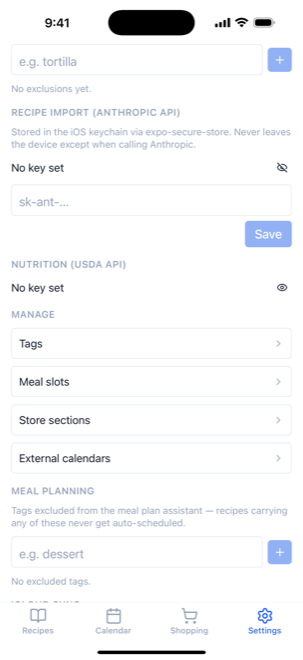
That's it. Go back to + on the Recipes tab and you'll find two new tabs waiting: Photo and Paste Text. The welcome tour also offers to set this up, if you'd rather do it there.
Is my key safe?
Your key is stored in the iPhone's keychain, the same locked drawer that holds your saved passwords. It never goes to a Platecraft server, because there isn't one. The only place it gets sent is Anthropic, when you ask for a recipe to be read.
Treat it like a credit card number: don't email it to anyone, and don't post it. If you think it has gotten loose, delete it at console.anthropic.com and create a new one. The old one stops working immediately. In Platecraft, tap the eye icon and Clear to remove it from your phone.
The free nutrition key
Separately, Settings → Nutrition (USDA API) takes a key from the US Department of Agriculture's food database, which gives you calorie and nutrition information on your ingredients. It's free, with no billing involved, and you can request one in about a minute at fdc.nal.usda.gov. Paste it in, tap Save, done.
6. Syncing your own iPhone, iPad, and Mac
Platecraft can keep all of your own devices in step, so a recipe you add on your phone shows up on the iPad on the kitchen counter. It does this through your own iCloud, the same place your photos and notes already live. There is no Platecraft server in the middle, which is why we can promise we never see your recipes: they never pass through us.
Turning it on
- Make sure the device is signed into iCloud and that iCloud Drive is on (iPhone Settings → tap your name → iCloud).
- In Platecraft: Settings → iCloud sync → tap Enable sync so it reads On.
- Tap Sync now once to send your recipes up.
- On your other device, install Platecraft, sign in to the same Apple Account, and turn on Enable sync there too. Your recipes appear.
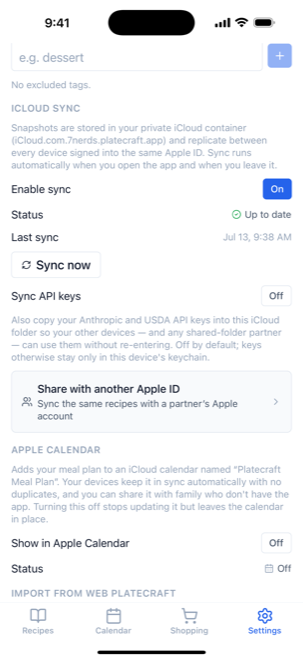
After that it takes care of itself. Platecraft syncs each time you open the app and each time you leave it. The Status and Last sync lines tell you where things stand.
What "Sync API keys" does
Once sync is on, you'll see a Sync API keys switch, off by default. Leave it off and your Anthropic and USDA keys stay only on this device, so you'd paste them in again on your iPad. Turn it on and the keys are copied into your iCloud folder, so your other devices (and a shared-folder partner, if you have one) can use them without you typing anything again. Syncing between your own devices, it's convenient and safe. If you're sharing with someone else, consider whether you want them spending on your AI account.
7. Sharing recipes with your partner
Section 6 covers your own devices. This section is about a second person with their own Apple Account: a partner, a housemate, an adult kid. You'll both see the same recipes, the same meal plan, and the same shopping list, and either of you can change them.
Underneath, this is an ordinary iCloud shared folder, the same feature you'd use to share a folder of photos. One of you is the sharer (the recipes start on their phone) and the other is the joiner. Decide which of you is which before you start. The sharer should be whoever already has the recipes.
Both of you start in the same place: Settings → iCloud sync → Share with another Apple ID. Sync has to be on first. The app then walks you through your half of it.
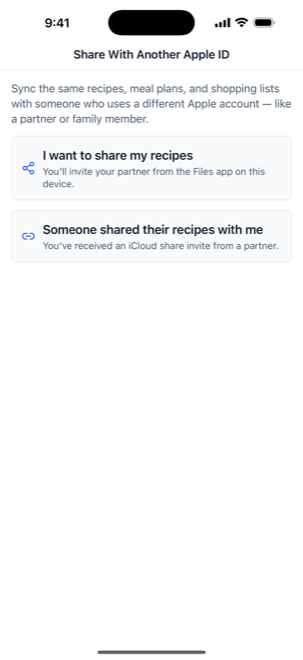
If you're the sharer (the recipes are yours)
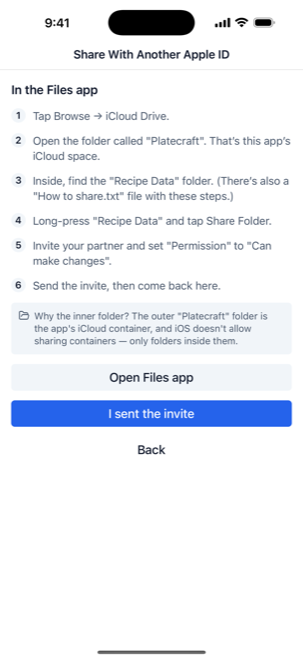
- Open the Files app on your iPhone, the blue folder icon.
- Tap Browse → iCloud Drive → the folder called Platecraft.
- Inside it you'll see a folder called Recipe Data. Press and hold it until a menu appears, then tap Share Folder.
- Invite your partner by phone number or email, and set the permission to Can make changes. Otherwise they can look but not touch.
- Send the invite, come back to Platecraft, and tap I sent the invite.
If you're the joiner (someone shared with you)
- Open the invite they sent you, in Messages or Mail, and accept it. The folder now shows up in your Files app under Shared.
- In Platecraft: Settings → iCloud sync → Share with another Apple ID → Someone shared their recipes with me.
- Tap Open folder picker, find their Recipe Data folder under Shared, and tap Open.
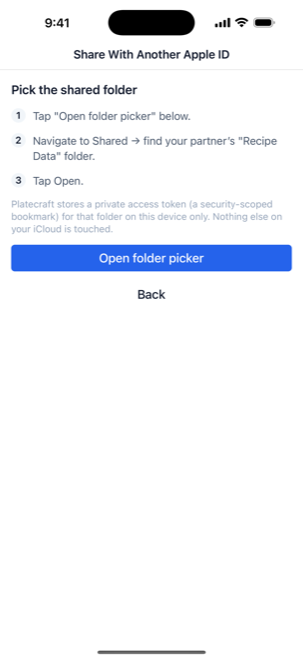
That's the connection made. Your existing recipes merge into the shared collection on the first sync, so nothing of yours is thrown away.
8. When two people change the same thing
Here's a situation that will eventually happen. You're on the train editing the chili recipe to add more beans. At the same moment, your partner is at home editing the same chili recipe to cut the salt. Two different versions of one recipe, and neither phone knew about the other.
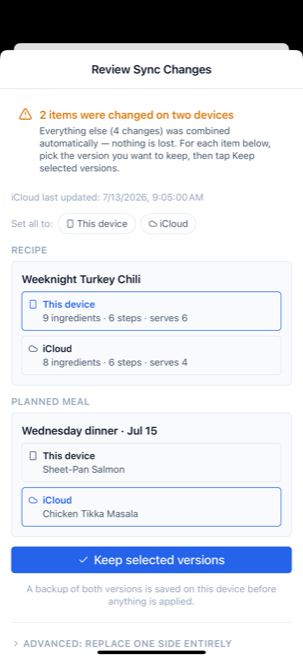
Platecraft handles almost all of this silently. If you changed the chili and your partner changed the pancakes, both changes simply show up, no questions asked. It only asks you something when the same item changed on both sides, because that's the one case where choosing for you might throw away someone's work.
When that happens, you'll see a prompt that reads "Sync needs a quick decision." Tap it.
What you're looking at
You get one card for each item that changed in both places. Each card shows the two versions side by side and asks a simple question: keep This device, or keep iCloud, which means the other device's version? Tap whichever one you want. If there are several and you know which side is right, use Set all to at the top to answer them all at once.
When you've made your picks, tap Keep selected versions to apply them. Everything you weren't asked about was already merged automatically, and nothing else is affected.
The two options you should almost never touch
Behind the "advanced" disclosure are two blunt instruments: Keep only this device's data and Keep only the iCloud data. These don't merge anything. They throw one entire side away. They exist for the rare case where one device has gotten thoroughly scrambled and you just want the other one to win. Platecraft tells you exactly how many items you'd be discarding and makes you tap twice. Unless you're certain, use the per-item cards instead.
9. Backing up
Your recipes are yours, which also means they're your responsibility. Sync is not a backup: if you delete a recipe on your phone, sync faithfully deletes it everywhere else too. A backup is a frozen copy that doesn't change when you do something regrettable.
Making a backup
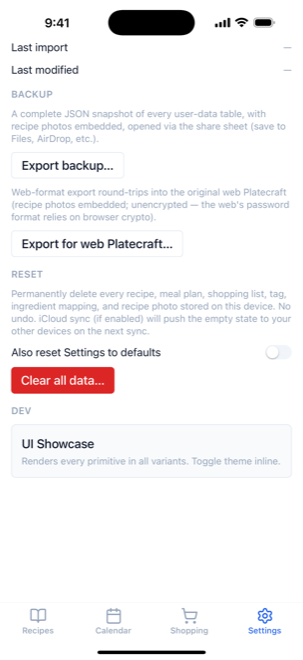
- Go to Settings → Backup.
- Tap Export backup….
- The normal iPhone share sheet appears. Choose Save to Files and put it somewhere you'll find it, such as iCloud Drive. You can also AirDrop it to your Mac, or email it to yourself.
The file contains everything: recipes, photos, tags, meal plans, shopping lists, settings. It's a single file, so it's easy to keep a few of them around. Do this after a big recipe-adding session, and every month or two otherwise.
Restoring one
In Settings, the Import from web Platecraft section reads a backup file back in. There are two modes, and the difference matters:
- Merge (the safe one): adds anything from the backup that isn't already on the device, and leaves what's here alone. If you're not sure, this is the one.
- Replace (the sharp one): wipes the device first, then loads the backup. Anything you've added since that backup was made is gone. Use this only when you're deliberately rolling back, or setting up a fresh device.
Starting over
Settings → Reset → Clear all data… deletes every recipe, plan, and list on the device. There's no undo, and if sync is on, the empty state gets pushed to your other devices too. Export a backup first.
10. Troubleshooting and common questions
My recipes aren't showing up on my iPad.
Check three things, in this order. One: is Enable sync switched on in Platecraft on both devices? Two: are both devices signed into the same Apple Account with iCloud Drive turned on? Three: open the app on the first device and tap Sync now, wait for it to finish, then open the app on the second. If the status line shows an error, the text there usually names the problem.
The URL import didn't work on a recipe site.
Some sites don't publish their recipe in a form the app can read directly. With the AI features set up (section 5), import falls back to reading the page and usually gets it. Otherwise, copy the text and use Paste Text, screenshot it and use Photo, or type it in with From Scratch, which always works.
The Photo and Paste Text tabs aren't there.
Those two only appear once an Anthropic API key is saved, since they can't do anything without one. See section 5. If you've saved a key and they still don't appear, check that Settings → Recipe import (Anthropic API) says Key on file.
An AI import failed with an error about credit or billing.
That's your Anthropic account, not Platecraft. Sign in at console.anthropic.com and check the billing page. The balance has probably run out, or the key was deleted. Topping up, or pasting a fresh key, fixes it.
I'm the joiner and Platecraft says the folder "doesn't contain Platecraft data yet."
Usually that means your partner hasn't synced since they shared the folder. Ask them to open Platecraft and tap Sync now, then try again. Otherwise you may have picked the wrong folder: it has to be the one named Recipe Data, under Shared.
Can I share just one recipe with a friend?
Sharing (section 7) is all-or-nothing with one person. To hand a single recipe to someone, open it and use the share button. To give them your whole collection to start their own, export a backup and send that.
Do I have to use AI, iCloud, or sharing at all?
No. Platecraft works offline, on one phone, with no key and no iCloud. Every one of those features stays off until you turn it on.
What happens to my recipes if I stop using the app?
Export a backup (section 9). It's an ordinary file that belongs to you, and it holds everything. There's no account to close and nothing of yours on our servers, because there are no servers.